Verifying Your Identity
Logging In
Magic Link Login
Logging in with a magic link is a secure and convenient way to access your account. Magic links are simple single use URLs that expire after a short period of time. They are sent to your registered email address and can be used to log in without needing to remember a password.
- Access the portal Login Page (opens in a new tab).
- Opt to use the new "SSO" experience when prompted or select the "Work Shield SSO" option on the login page.
- Select the "Magic Link" option (if you have a passkey, you can use the passkey option instead. See below for more details.)
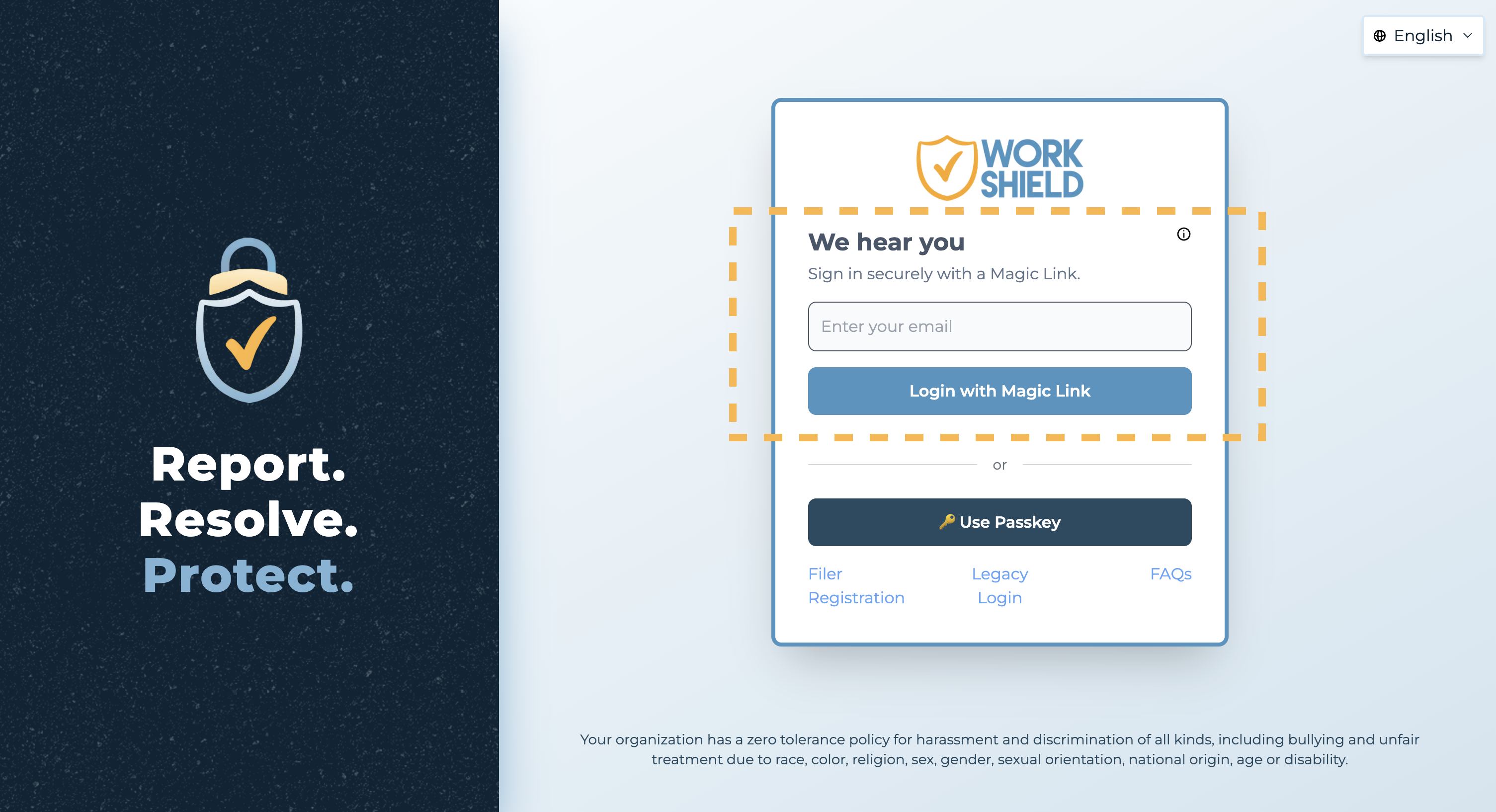
- Enter your registered email address and press "Login with Magic Link".
- Check your email inbox for the magic link.
- Click on the magic link to log in.
Passkeys
Passkeys are a secure and convenient way to log in to your account. They are generated by your browser and stored securely on your device. They are not stored on any servers such as a password and make it easy for you to use biometrics to log into your account (Fingerprint, Face ID..).
Note: In order to register a pass key you must first authenticate with a magic link. This process verifies your identity and ensures that you are the owner of the email address associated with your account before a passkey can be registered.
Passkey Registration
- First, follow the steps outlined in the "Magic Link Login" section to authenticate with a magic link.
- Access the SSO Management Page (opens in a new tab) and select "Add Passkey". Read more about account security.
- Follow the device specific instructions to register your passkey. Note, some devices may require additional steps or permissions to register a passkey.
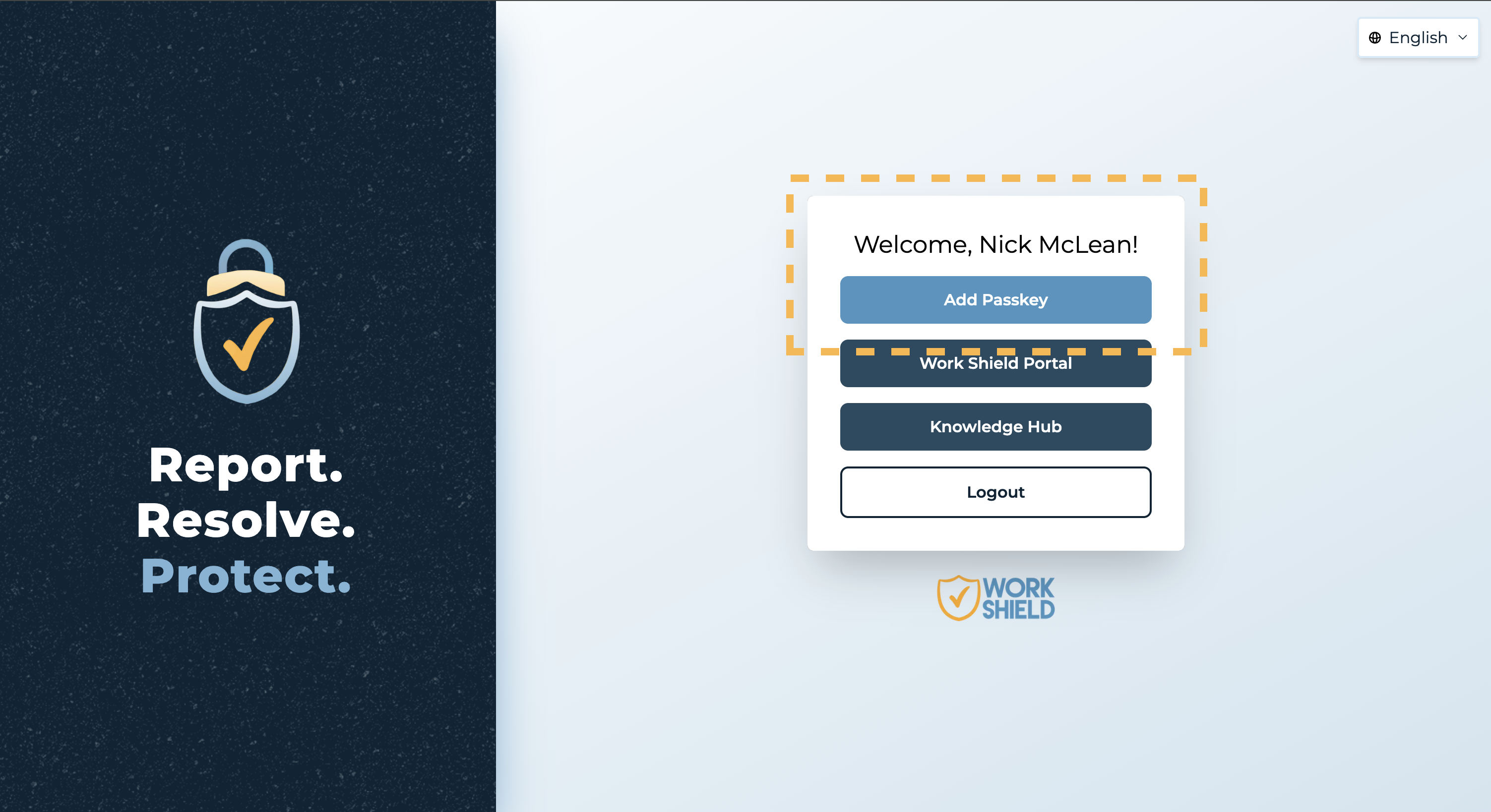
Passkey Deletion: Once you have registered a passkey, the "Add Passkey" button will be replaced with a "Delete Passkey" button in the SSO Management Page (opens in a new tab). This action can not be undone.
Passkey Login
- Access the portal Login (opens in a new tab).
- Opt to use the new "SSO" experience when prompted or select the "Work Shield SSO" option on the login page.
- Select the "Use Passkey" option. Note, the SSO Portal will remember your preference for passkey login.
- Enter your registered email address and press "Login with Passkey".
- Your browser will prompt you to use your registered passkey or scan a QR code to sync a passkey from another device or your password manager.

If you haven’t registered a passkey yet, your browser may prompt you to scan a QR code to sync a passkey from another device or your password manager. However, you must still register a passkey with this site before you can use it to log in—even if it's saved to your device.
Google Sign In
Alternatively, you can log in using the Google Sign In option. Simply click on the Google Sign In button and use your Google credentials. Please make sure your Google account is associated with the same email you used to register with the Work Shield portal.
Guest Code Login
Logging in with a guest code provides a secure way to access the portal without using an email address. Guest access allows users to submit incidents anonymously and return later to review the status of their report.
Accessing the Portal with a Guest Code
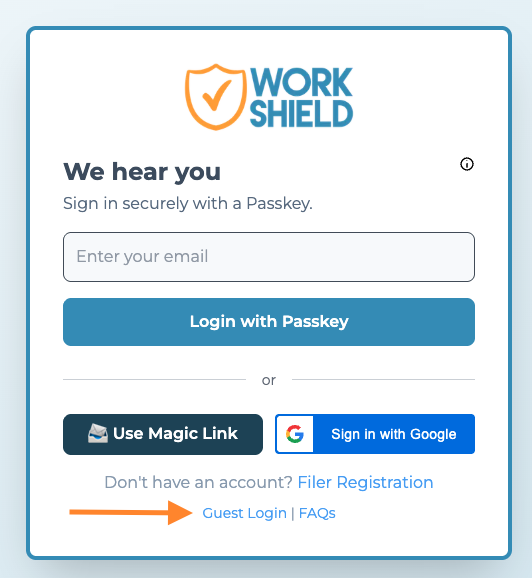
- Navigate to the portal Login Page
- Select Guest Access
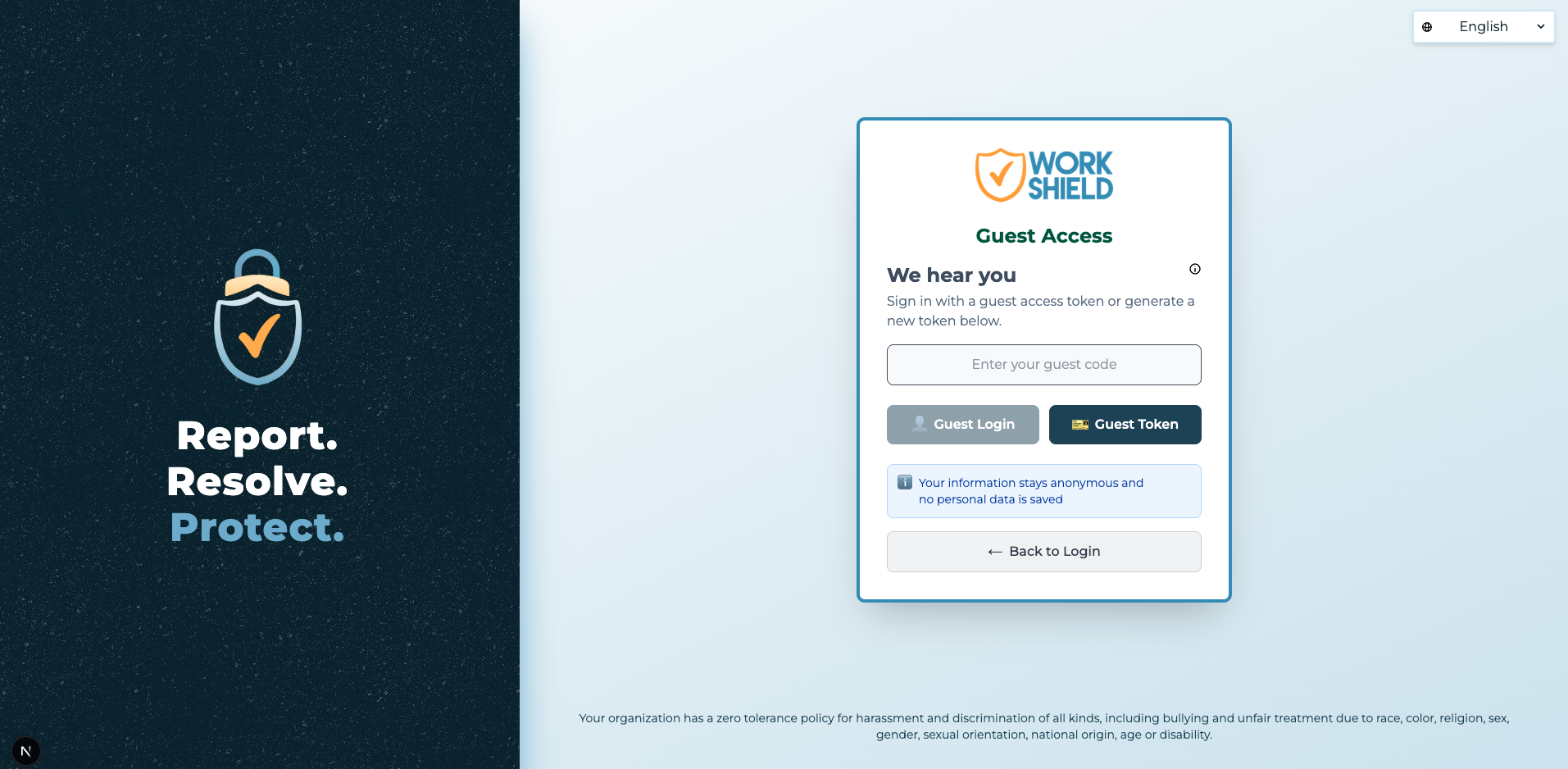
- Enter your unique guest code
- Click Guest Login
You can return to the Login Page at any time and enter your guest code again to check the status of submitted incidents.
Requesting a Guest Code
If you do not already have a guest code:
- Click Guest Token on the Login Page
- A Guest PDF Kit will automatically generate and download
- Save this document for future reference
Your Guest PDF Kit contains your unique guest code, which you will use each time you log in.
Optional Account Conversion
Guest users may choose to convert their access to a full member account at any time.
Converting to a Full Account
- Log in using your guest code
- Navigate to My Account
- Add your email address
- Submit your update
Once your account is converted:
- Your guest code will no longer be valid
- You will log in as a regular user
- Access will be granted through a Magic Link or Passkey